
How do I embed 360 images on Shopify?
Publish a SpinShot view, copy its HTTPS embed URL, and use the theme-script and product-image workflow below to replace the chosen product-image container with the viewer. The script’s container selector must match your theme; this is a theme integration, not a guarantee that every Shopify gallery uses the same markup.
Before editing, duplicate your theme and test in the copy. Inspect a product page to identify its image container and adjust window.spinshot.container_path accordingly. If your theme uses a different gallery structure or dynamically replaces product media, have your developer adapt the integration. Keep a useful still image and essential specifications available alongside the spin.
SpinShot enables you to easily embed a 360° product spin into any Shopify product page by simply copying and pasting an embed link that is generated by the SpinShot system. First you need to create an SpinShot account here and create some 360 spins. Once you have done that simply follow the instructions below to publish your 360 views on Shopify product pages.
Step 1: Sign up with SpinShot
- Create your SpinShot account at www.spinshot.io
Step 2: Add Javascript to your theme
-
Log in to your Shopify account
-
Navigate to your theme editor through Online Store > Themes in the navigation on the left hand side
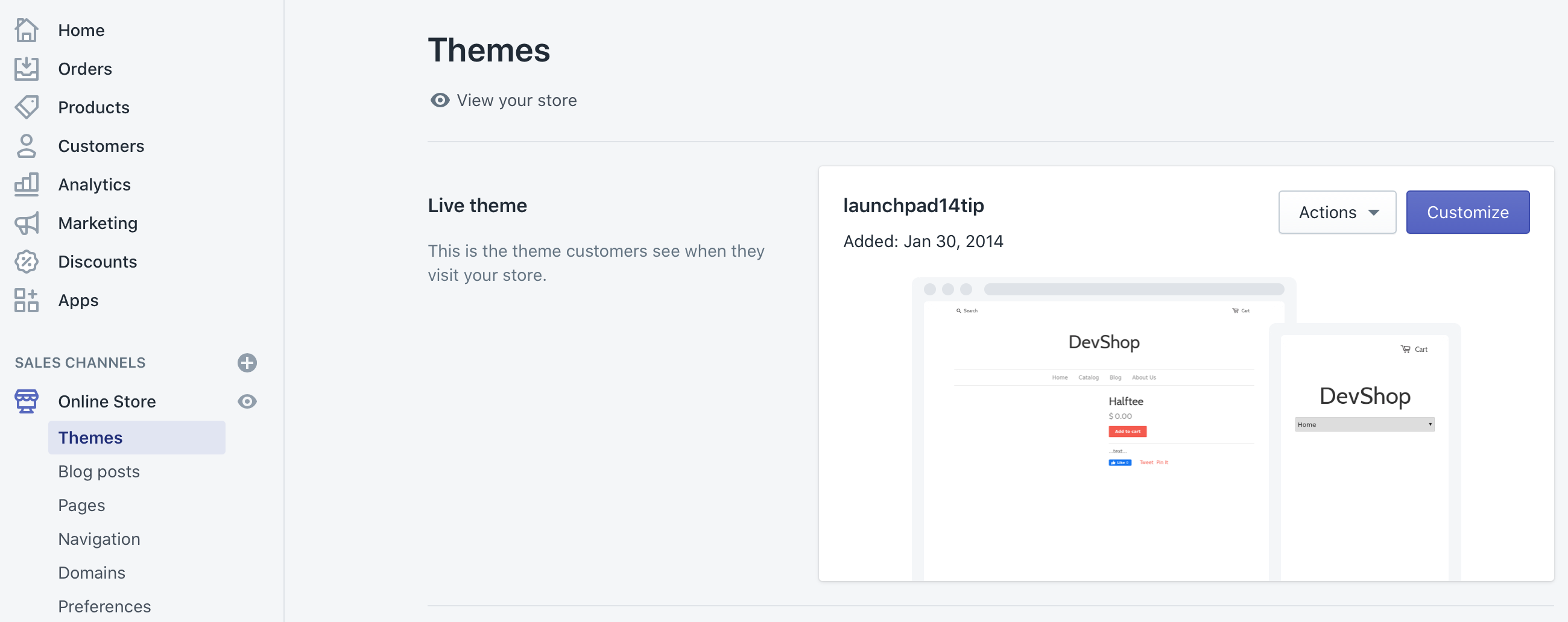
- Select the duplicate, unpublished theme and open its code editor. The historical screenshots below show older Shopify menus; labels and file locations may differ in your current admin.
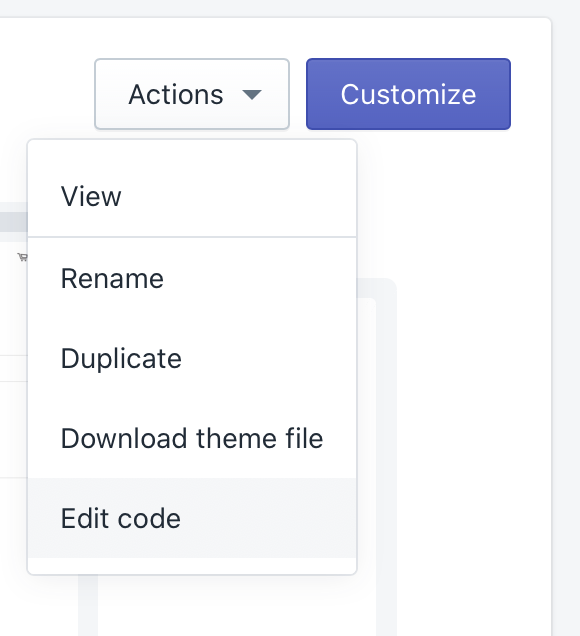
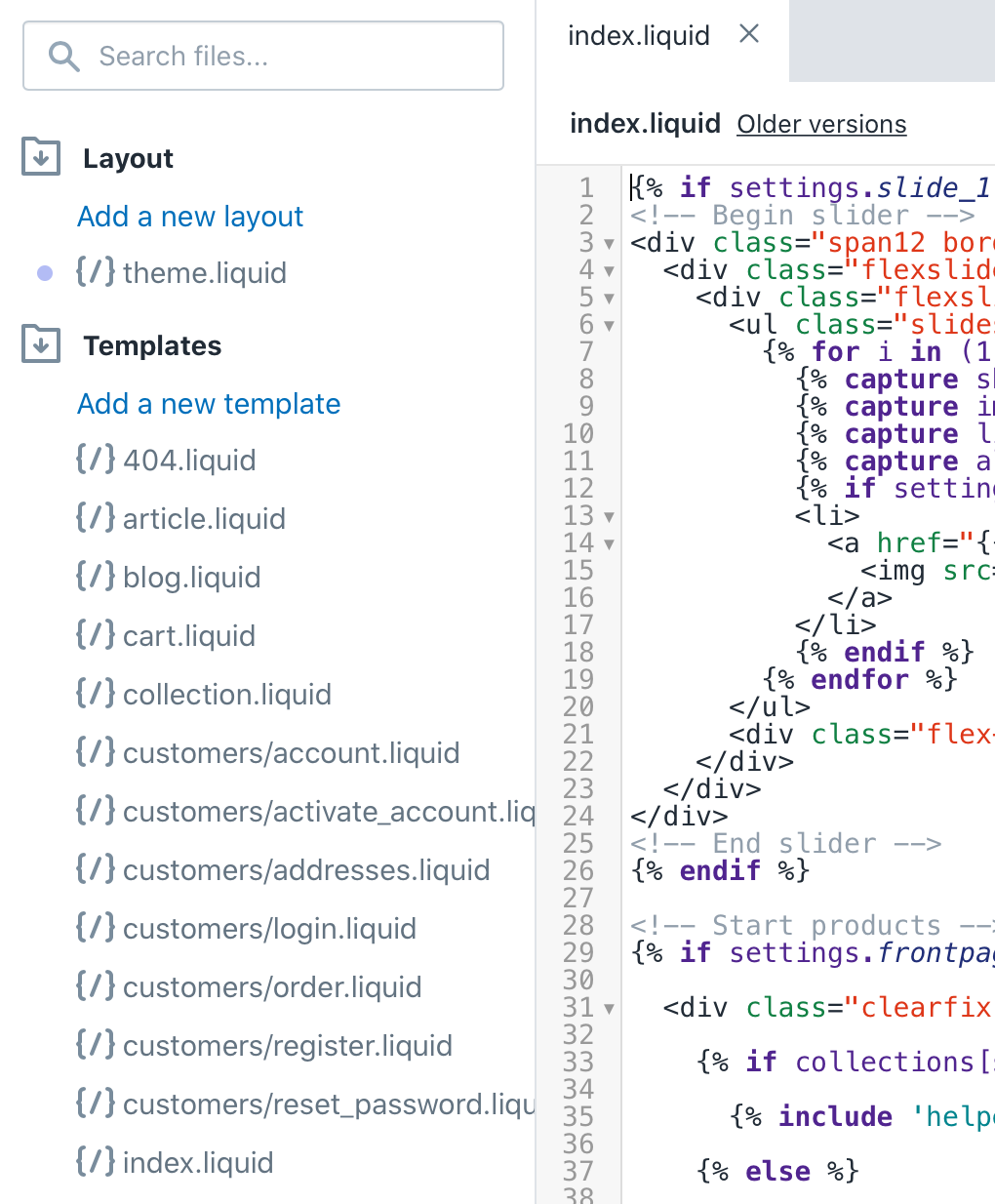
- Locate the layout file used by the product page, commonly
layout/theme.liquid. The historical tutorial usedindex.liquid; confirm your theme’s structure rather than assuming that file exists.
- Insert the following example Javascript before the closing
</body>tag of the applicable layout. This example assumes the image has two wrapping elements and measurable dimensions when the script runs. Verify those assumptions in your duplicate theme; it does not automatically handle galleries replaced after variant changes.
<script>
window.spinshot = {};

// CONFIGURATON BEGIN
// CSS path to find the image container: please adjust to match the container holding your images, depends on the theme
window.spinshot.container_path = ".product__media-list";
// CONFIGURATON END

(function() {
  // Act on product pages only
  if (location.href.indexOf("/products/") > -1) {
    // Find container
    window.spinshot.container = document.querySelector(window.spinshot.container_path);
    if (!window.spinshot.container) return;
    // Find images
    window.spinshot.images = window.spinshot.container.querySelectorAll('img[alt*="spinshot"]');
    for (let image of window.spinshot.images) {
      // Find SpinShot UUID
      let match = image.alt.match(/https:\/\/embed\.spinshot\.io\/([\w-]+)/);
      if (!match) continue;
      let uuid = match[1];
      let target = image.parentElement && image.parentElement.parentElement;
      if (!target) continue;
      // Find dimensions (optionally, try using width instead of offsetWidth and height instead of offsetHeight)
      let width = image.offsetWidth;
      let height = image.offsetHeight;
      if (!width || !height) continue;
      let ratio = height / width;
      // Build SpinShot iframe
      let iframe = '' +
        '<div class="spinshot" ' +
        'style="margin: 0 auto; padding: ' + Math.round(100 * ratio) + '% 0 0 0; width: 100%; position: relative;">' +
        '<iframe title="Interactive 360 product view" src="https://embed.spinshot.io/' + uuid + '" allowfullscreen frameborder="0" scrolling="no" style="background-color: #fff; position: absolute; top: 0; left: 0; width: 100%; height: 100%;"></iframe>' +
        '</div>';
      // Insert SpinShot iframe
      target.innerHTML = iframe;
    }
  }
})();
</script>
- Click the “Save” button
Step 3: Add a 360 product image to a Shopify product page.
-
Log into your SpinShot account and find the product view you want to add.
-
Click “Embed” and choose the “URL” tab.
-
Copy the HTTPS URL for your own published view. An example of the format is
https://embed.spinshot.io/PQUDbEJO_N4. -
Log into your shopify account.
-
Navigate to the product page you want to edit.
-
If you haven’t already done so, add a static product image like you normally would.
-
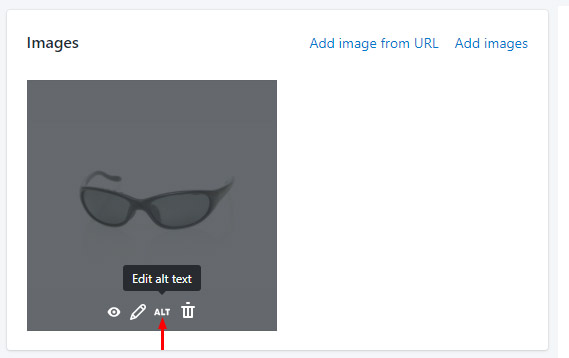
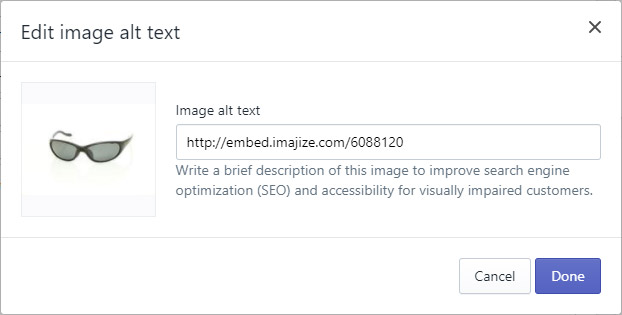
After the image has been uploaded, hover over the image preview and then click “ALT”
-
Now paste the HTTPS embed URL that you copied from the SpinShot Embed page. Follow the script’s documented product-image ALT convention so it can identify the view. Preserve descriptive ALT text for ordinary still images.
-
Preview the saved product page in the duplicate theme on desktop and phone. Check the viewer’s placement, drag/touch rotation, zoom, and purchase controls, including after variant selection. Publish the theme only after those checks pass.
-
If the view is missing, open the embed URL independently, confirm the image-container selector and ALT convention, and check any domain restrictions or storefront security settings. See publishing troubleshooting for further checks.
-
If the preview checks pass, the viewer is ready to publish with the tested theme.
-
Repeat Step 3 for each 360 view
Here is an example of an SpinShot 360 viewer in action.