To add a 360 product image to WooCommerce, publish your SpinShot view and copy its HTTPS embed URL. The documented plugin workflow adds a Featured spin URL field to the product editor: paste the URL there, save, and preview the product page.
Check compatibility before changing your store
Test in a staging copy and back up your site before installing a plugin or changing a theme. The plugin is listed under its legacy Imajize name. Check its current compatibility information against your WordPress, WooCommerce, and theme versions; the existence of this guide is not a guarantee of compatibility with every version or product-gallery customization.
If the plugin workflow does not fit your current theme, use the published viewer’s iframe embed in a suitable custom HTML location or ask your developer to integrate it into the product template. Keep a useful still photograph and the product specifications available alongside the viewer. For basic embed options, see embedding your 360 view.
Embedding 360 Spins in WooCommerce
If you’re using WooCommerce to sell your products, you can replace the default product image with an awesome product spin. It’s simple:
-
Install and activate the SpinShot plugin on your wordpress website.
-
Log into your SpinShot account and find the product view you want to add.
-
Click “Embed” and choose the “URL” tab.
-
Copy the embed code. Use the HTTPS URL for your own published view; an example of the format is
https://embed.spinshot.io/PQUDbEJO_N4. -
Log into your wordpress site.
-
Go to the WooCommerce product page you want to edit.
-
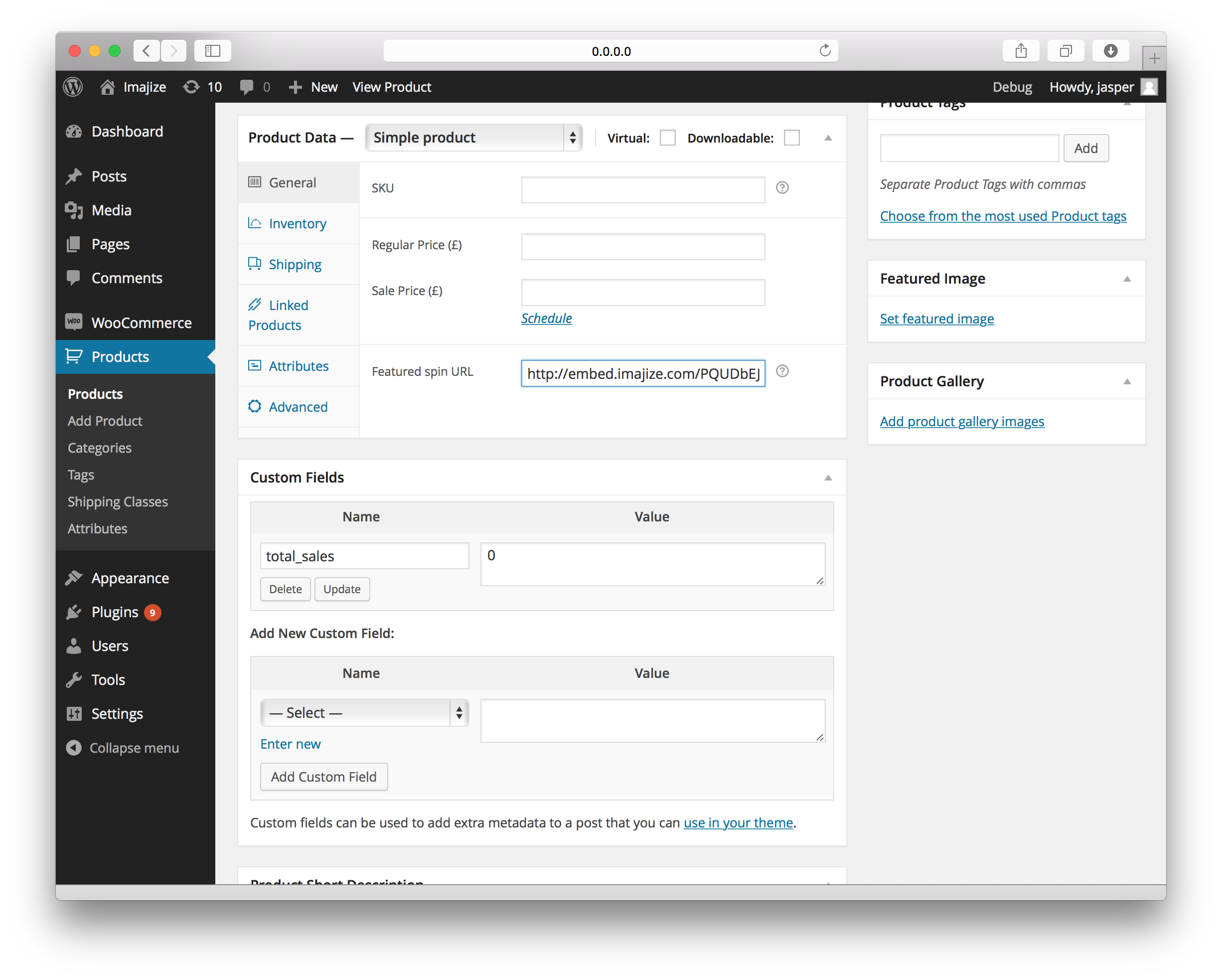
Notice the handy new “Featured spin URL” field that we have added!
-
Simply paste the embed code in “Featured spin URL” field and click save.
-
Preview the saved product page on desktop and phone. Check drag/touch rotation, zoom, layout, and purchase controls. Test with your theme’s image-gallery scripts and caching enabled before deploying to the live store.
If the viewer is missing, first check that its embed URL opens independently. Then check the product field, any configured domain restrictions, and the storefront’s script/security settings. See publishing troubleshooting or contact support with the affected page URL and reproduction steps.
Here is an example of an SpinShot 360 viewer in action.